If your TV is flickering or not working at all when connected to you laptop through the dock please read through this article to diagnose and fix your problem.
Important note: If you notice that you have issues when using different classrooms please note that this is because display settings are only remembered by the laptop in the same classroom. Each different classroom will require first-time setup again.

In addition, using the same of the two USB-C ports on your laptop for the dock will make it more likely the laptop remembers its previous settings.
My TV is not working at all with my dock
- Please ensure that your TV is on the correct HDMI input - on some TVs these are labelled as PC (for laptop) and SB (for ScreenBeam), and on others you will need to find out which is the laptop.
- If you see the AGSB logo with a green leafy background you are on the ScreenBeam input and need to switch to the other active HDMI input using the 'Source' button on your TV remote (examples below):

- If you see the AGSB logo with a green leafy background you are on the ScreenBeam input and need to switch to the other active HDMI input using the 'Source' button on your TV remote (examples below):
- Next, please check that your laptop is open and plugged in to your dock using the USB-C (white taped) cable.
- After this, please open the Start Menu and type 'display' - this should bring up the option to open 'Display settings' (it may also say 'Duplicate or extend to a connected display', feel free to choose this option instead.
- Check in the Display settings that you can see three screens in the top window - if you only see two screens like the example below please refer to the 'I can only see two screens' section. If you see all three screens please continue to Step 5.
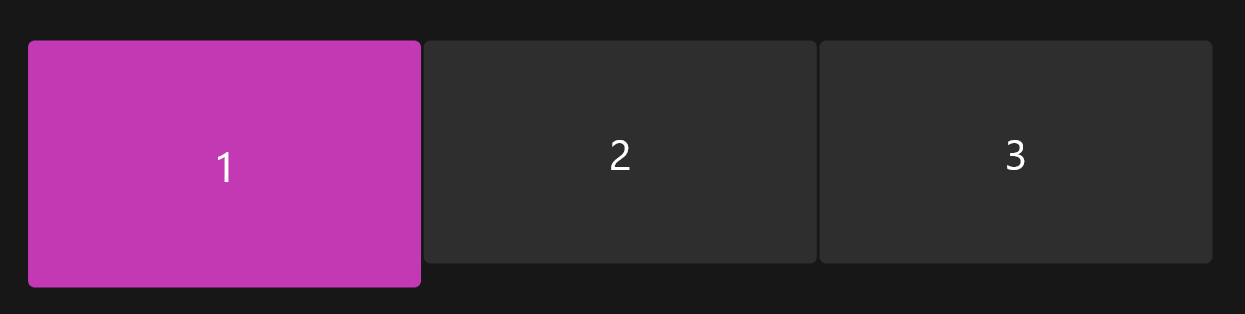
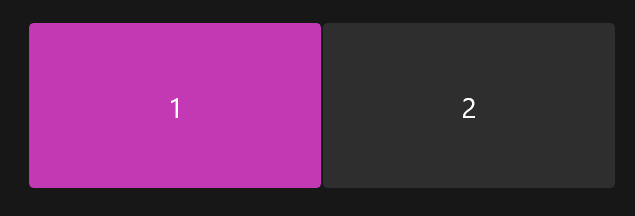
- If you see all three screens like above please click the 'Identify' button shown below to determine which screen is which. Your open laptop screen should be Monitor 1 and your iiyama monitor should be either Monitor 2 or Monitor 3. Determine which is your non-working TV by noting the missing number.
- Click on the box corresponding to the correct number for the TV in the same area you see in the images in Step 4. After you have done this and it is selected, scroll down until you see the 'Advanced display' option and click this.
- In the section at the top next to 'Select a display to view or change its settings' you should see the same number you just selected. It will likely also have the word TV in its name (but not always) for reassurance. After confirming this is the case, click the dropdown box next to 'Choose a refresh rate'.
- You will see multiple number options in this selection, each followed by Hz. Please select the 30Hz option, which will hopefully allow your TV to now turn on.

- If your TV is now on please refer to this article to change your display settings to match your preferences.
- If you continue to experience issues after following the guide on this page please refer to this article.
My TV is on but is flickering
- If your TV is on but flickering, please follow the steps listed above in the 'My TV is not working at all with my dock' section from Step 5. This should fix the flickering on the TV.
- At this point if your TV is now on and has stopped flickering please refer to this article to change your display settings to match your preferences.
I can only see two screens
- If you can only see two screens in your display settings please ensure the following:
- That your laptop is plugged into the dock correctly
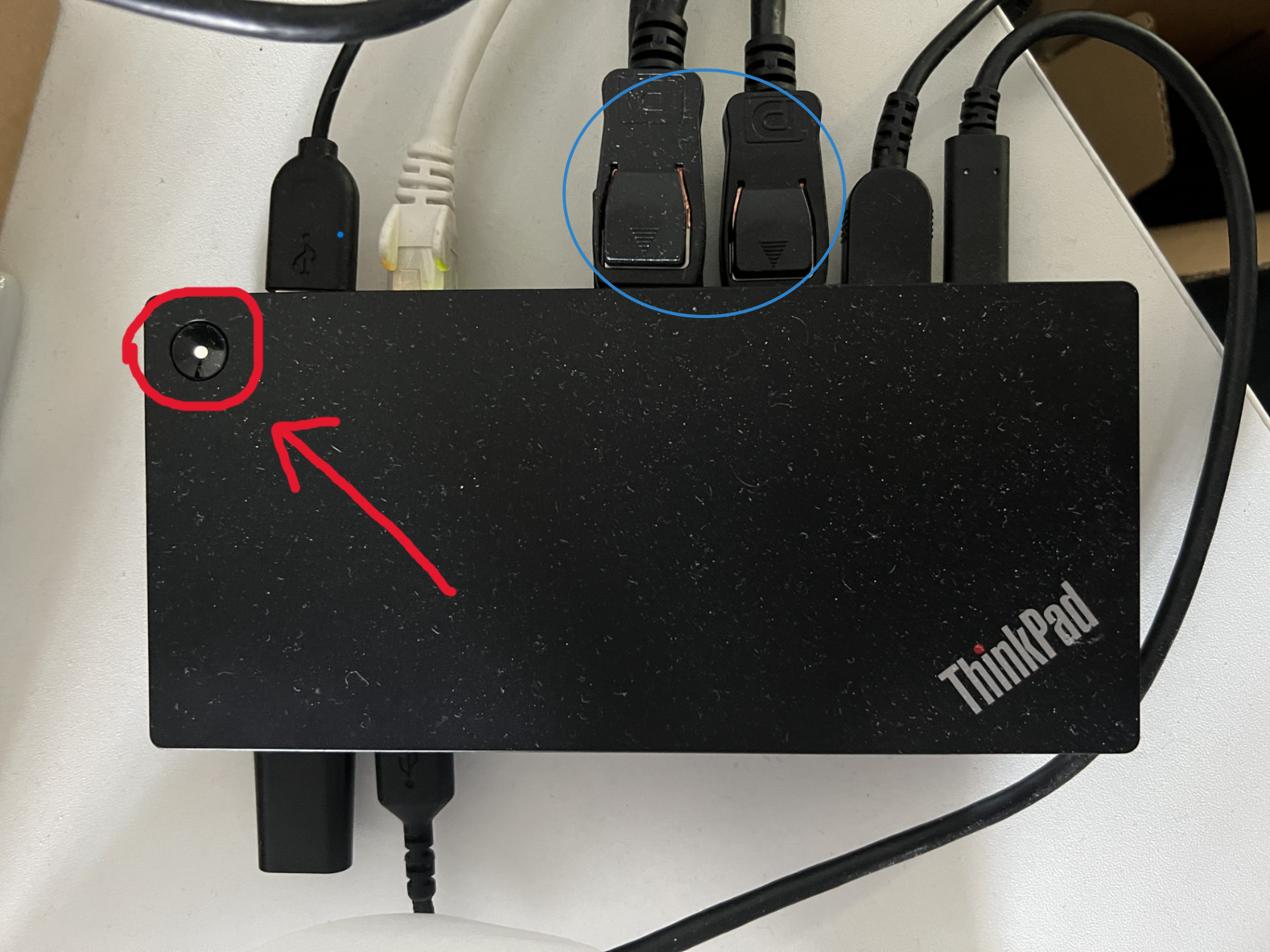
- That there are no loose display cables coming out of the dock (circled in blue)
- That the white light is active on the dock, if you see a red light or no light please try pressing the button where you see the light on the dock (pictured below):
- Open the Start Menu and type 'display' - this should bring up the option to open 'Display settings' (it may also say 'Duplicate or extend to a connected display', feel free to choose this option instead.
- Check again that you only see two screens. If you now see three but the TV is not showing any signal or flickering, please refer back to Step 1 of 'My TV is not working with my dock'
My TV will not work after following all of these steps
If you are unable to get the TV working after following all of the above steps, please first email spiceworks@agsb.co.uk to log a ticket, ideally mentioning that you have followed these steps in order to save us time troubleshooting.
In the meantime, please feel free to use the ScreenBeam which is also attached to the TV in every classroom. Click here for instructions on how to use the ScreenBeam with your laptop.
Was this article helpful?
That’s Great!
Thank you for your feedback
Sorry! We couldn't be helpful
Thank you for your feedback
Feedback sent
We appreciate your effort and will try to fix the article