There are several options you can choose between when teaching using a laptop and dock in a classroom. This article outlines how to switch between these options and highlights two of the most useful.
! If you have already set up your display options how you want and are experiencing flickering on the TV or the TV is not displaying anything, please refer to this article instead.How do I switch between display settings?
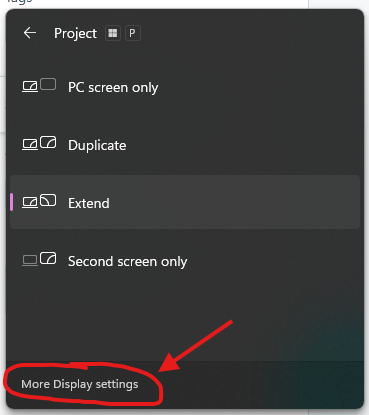
- Press Windows Key + P at the same time.
- Either select an option or click 'More display settings' at the bottom of the window that shows up for more options:
- The settings window should pop up with more advanced display settings:
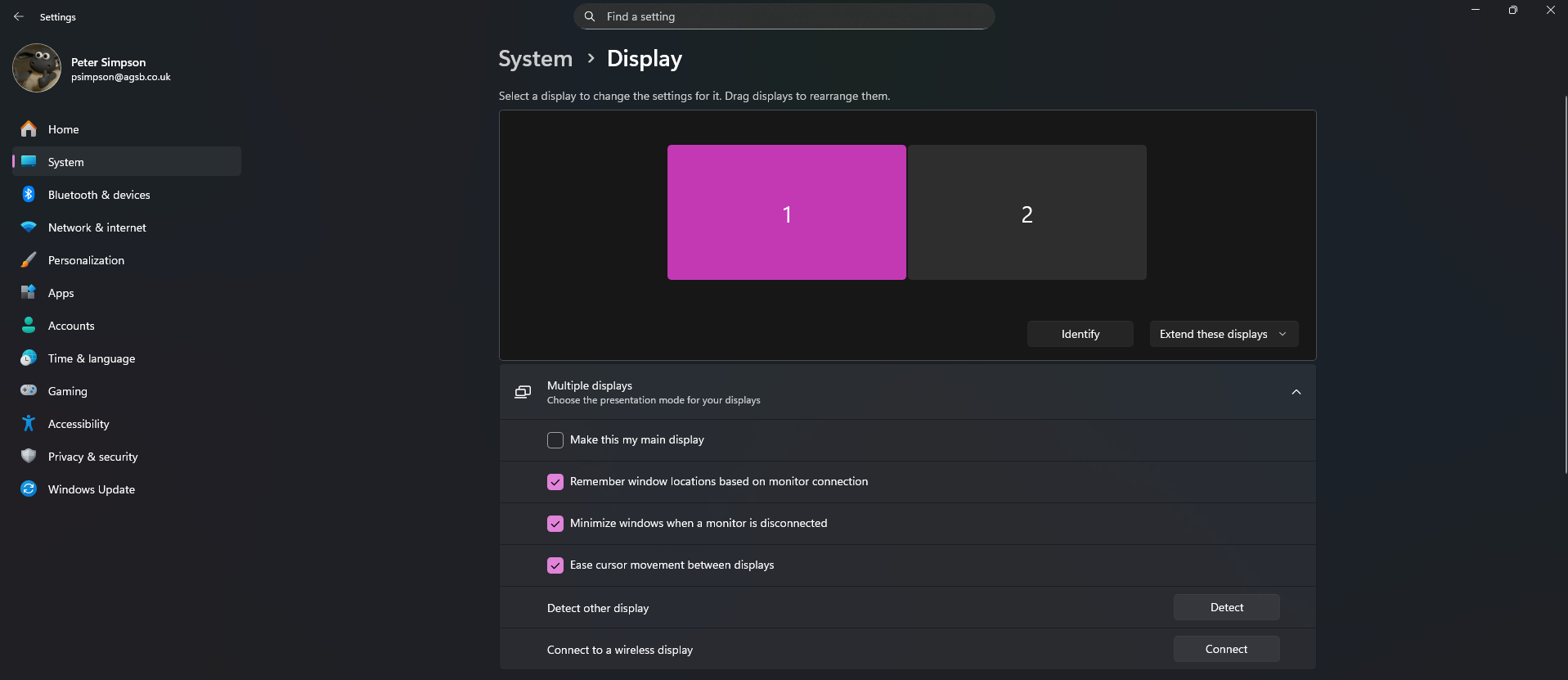
Advanced display settings
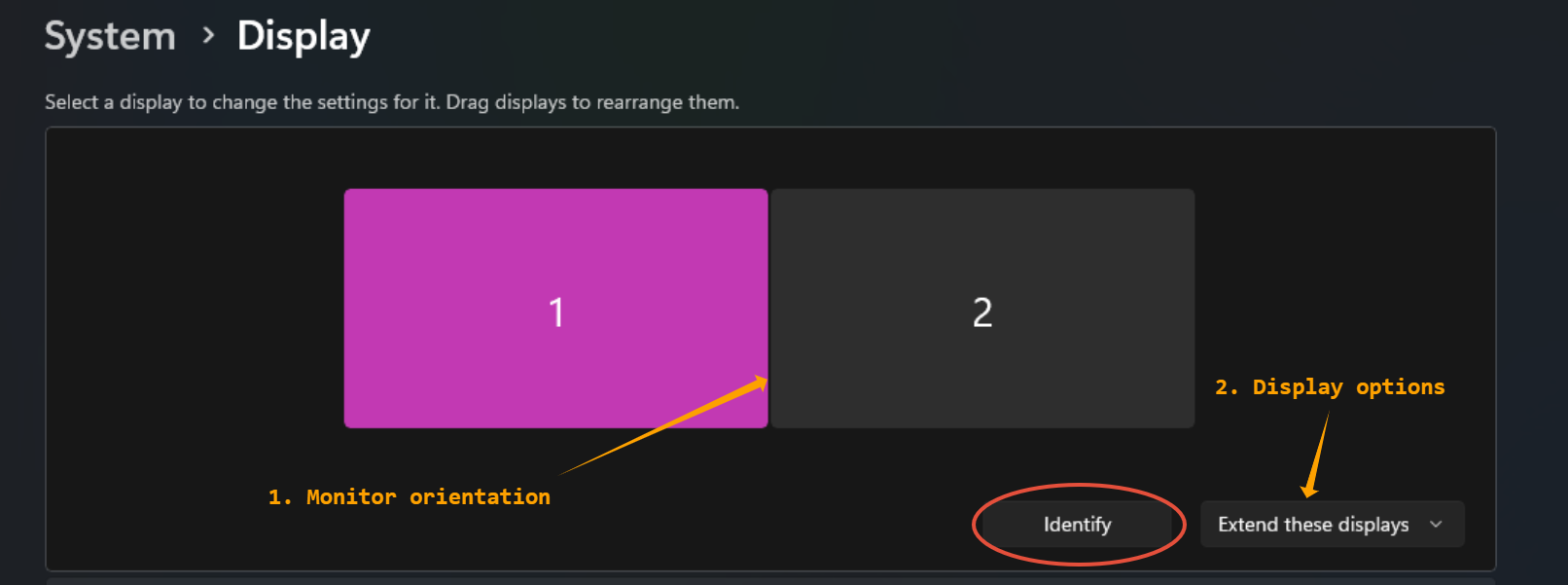
1. Monitor orientation
This section allows you to configure the orientation of your monitors - this is done by clicking and dragging each monitor (1, 2) etc. into position. For example in the above image Monitor 1 would be on the left of Monitor 2.
In order to see which screen is which, click the 'Identify' button (circled in red) - this will show on the bottom left of each screen which number each monitor is assigned like below:
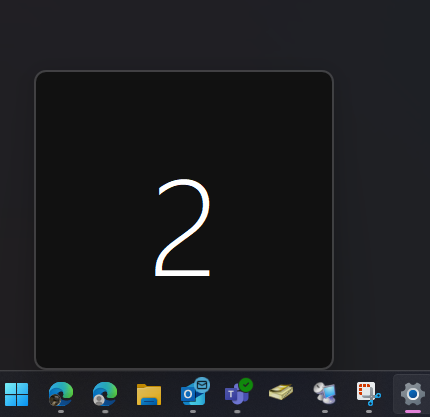
You can reorient these displays however you choose, including horizontally or vertically.
2. Display options
You can choose more advanced display options using the dropdown highlighted in the screenshot above: (2. Display options).
The main options are Extend, Duplicate, and Show only on.
Extend will make each monitor show a different display, allowing you to drag windows between each monitor and view different content on each.
Duplicate will show the same content on each monitor, however if you have 3 or more monitors connected you will only be able to duplicate on a maximum of 2.
Show only on will disable all other monitors except the one selected.
There are two particularly useful options for use in classrooms for teaching:
Duplicate on 1 & 2 (or 1 & 3) with laptop open
This option will allow you to show the same content on your laptop and your TV while having your iiyama monitor showing different content for you to work on whilst showing a PowerPoint etc.
Click here to view steps for this option
Extend or Duplicate on 1 & 2 with laptop closed
This option will allow you use the monitor and TV as two extended displays without utilising the laptop screen - this will behave exactly the same as using the old desktops.
Click here to view steps for this option
Was this article helpful?
That’s Great!
Thank you for your feedback
Sorry! We couldn't be helpful
Thank you for your feedback
Feedback sent
We appreciate your effort and will try to fix the article