To return to 'How do I change TV/monitor display options?' please click here.This option will allow you use the monitor and TV as two extended displays without utilising the laptop screen - this will behave exactly the same as using the old desktops.
- Make sure your laptop is closed, your TV is turned on, and that you have selected the correct HDMI input.
- If you see the AGSB logo and a green background on the TV you need to switch the HDMI input.
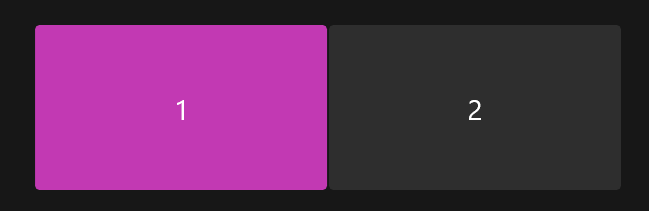
- You should only see two screens, Monitor 1 and Monitor 2.
- Select one of Extend these displays or Duplicate these displays - Extend will make your iiyama monitor and TV show different images, with you able to drag windows between them, Duplicate will make your iiyama monitor and TV show the exact same image.
- If you choose Extend, make sure Monitor 1 and Monitor 2 are in the right order for your preference, if you prefer to drag content to the left, right, up etc. please drag the two monitors to change their order.
- If after changing these settings your TV no longer shows anything or is flickering, please continue to this article.
Note: The laptop should remember your settings when using the same USB-C port and are in the same classroom - you will likely need to set this up again for each classroom you teach in.
Was this article helpful?
That’s Great!
Thank you for your feedback
Sorry! We couldn't be helpful
Thank you for your feedback
Feedback sent
We appreciate your effort and will try to fix the article